Self-Host an AI Assistant with OpenAgent
Run OpenAgent on your own machine, configure an LLM provider, create an assistant, and verify a real chat response with screenshots and troubleshooting.
Run the OpenAgent application on your computer, connect a model, and create an assistant with a repeatable first-message check. You do not need a messaging bot, embedding model, or MCP server for this tutorial.
You will finish with: a working assistant that answers 17 × 23 = 391 and a saved conversation you can reopen.
Before you start
- A Windows, macOS, or Linux computer with an available port
14000. - A supported model provider and its API credentials, or a running local inference server.
- Permission to send the test prompts to that provider. Hosted inference can incur charges.
The screenshots were captured on Windows with a source build on October 31, 2026, using an OpenAI Compatible provider and qwen3.8-flash. This runs the application locally while using cloud inference. It is not a fully offline setup.
1. Start OpenAgent
Download the executable for your operating system and CPU from the official releases. Put it in a dedicated, writable folder before running it. Keep this folder when upgrading: the single-binary SQLite database lives beside the executable.
For Windows x86-64, open PowerShell in that folder:
.\openagent_windows_x86.exeFor Linux x86-64:
chmod +x openagent_linux_x86
./openagent_linux_x86
For Apple Silicon macOS:
chmod +x openagent_darwin_arm64
./openagent_darwin_arm64
Open http://localhost:14000. See Install for other architectures, installers, or building from source. A fresh single-binary deployment uses SQLite without a separate database server. An existing on-disk configuration can select a different database.
Use a local-only instance while following this tutorial. Configure authentication and network access before making it available to other people; a first local visit can automatically sign in the built-in administrator while its default password is unchanged.
2. Connect a model
Expand Connectors → Providers, click Add, and configure:
| Field | Value for the screenshot setup |
|---|---|
| ID | tutorial-model |
| Display name | Tutorial Qwen |
| Category | Model |
| Type | OpenAI Compatible |
| Provider URL | https://dashscope.aliyuncs.com/compatible-mode/v1 |
| Sub Type | qwen3.8-flash |
| API Key | Your own Model Studio key with access to this model |
Click Save. The base URL and model ID must belong to the same provider account and region. Use the model actually available to your account; a provider type alone does not grant model access. For a different service, follow Model Providers and use its endpoint and model ID.
If you already have a local model server, use the matching local provider configuration instead. For example, Ollama needs its server URL and an already-downloaded model; selecting Ollama does not install or download a model automatically.
3. Create the assistant
Open Basic → Agents → Add. Older documentation calls an agent a Store; the API and URLs still use that name.
Set the ID to tutorial-assistant, display name to Self-hosted assistant, and Model provider to Tutorial Qwen. In Prompt, enter:
Answer concisely in English. Follow the requested output format.Leave the embedding provider and MCP server empty. Set Knowledge count to 0, and leave tools and skills unselected for this first check. Save the agent.
4. Send a test message
Open the agent's chat from the Agents list. For the ID above, its local address is:
http://localhost:14000/stores/admin/tutorial-assistant/chatSend:
Reply with exactly: OpenAgent is running. Then calculate 17 × 23.The answer should contain OpenAgent is running. and 17 × 23 = 391. The screenshot shows an actual model response:
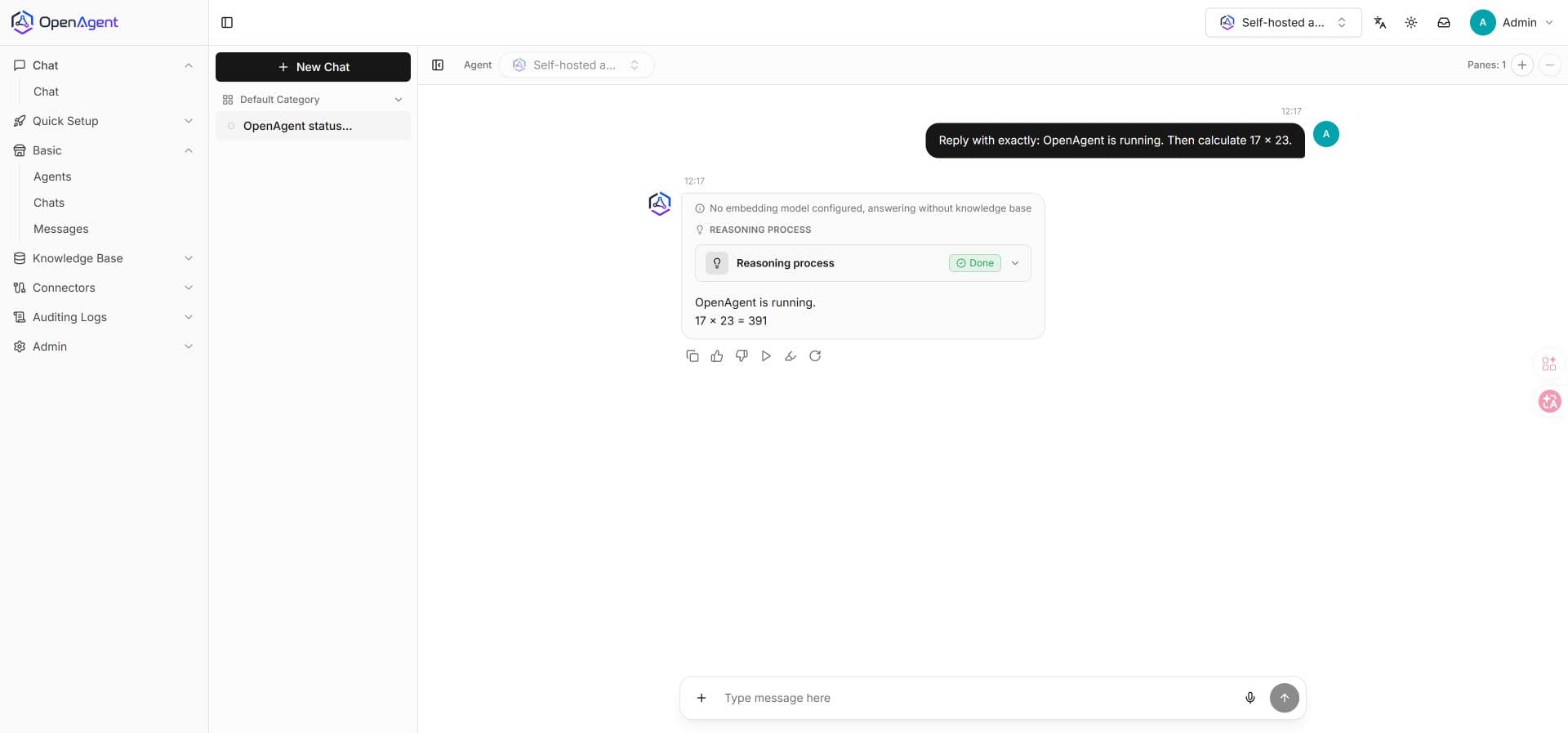
The “No embedding model configured” notice is expected here: this assistant does not use a knowledge base.
5. Verify history and persistence
Reload the page and reopen the conversation from the chat list. Confirm the question and answer remain visible. To check persistence across application restarts, stop the server normally, start the same executable from the same folder, and reopen the conversation. Do not move or delete its SQLite file.
This arithmetic check verifies the application-to-model path. It does not measure model quality, factual reliability, or production readiness.
Troubleshooting
| Symptom | What to check |
|---|---|
| Browser cannot connect | The executable is still running and the terminal shows the listening port. Check whether another application uses port 14000. |
| “No AI model is configured” | Save a Model provider and select it on this agent, then open a new chat. |
| Authentication or model-not-found error | API key, endpoint region, model ID, account access, and available balance. |
| A local model cannot be reached | The URL is reachable from the OpenAgent process. In a container, localhost refers to that container. |
| Conversation disappears after an upgrade | Check that you retained the original database and configuration, rather than starting in a new data folder. |
Extend the assistant
- Answer questions from an employee handbook with retrieval and source checks.
- Connect an MCP order lookup to answer from a live tool result.
Hands-on OpenAgent Tutorials
Build a self-hosted AI assistant, answer questions from your documents, and connect an MCP order lookup tool with working examples and screenshots.
Build a Document Q&A Knowledge Base with OpenAgent
Upload a sample employee handbook, generate embeddings, and verify document-grounded answers and source citations in OpenAgent with screenshots.