
Connect an MCP Server to OpenAgent: Order Lookup Tutorial
Run a Python MCP server, sync its tools in OpenAgent, and verify an order lookup with actual tool arguments, results, screenshots, and downloadable code.
An order-support assistant needs the status returned by the order system. Here you will run a small, read-only MCP server and connect it to an OpenAgent agent. You can inspect the tool call separately from the model's final answer.
You will finish with: a lookup_order call for ORD-1001 returning shipped, Demo Express, and DEMO-4821.
Before you start
- A running OpenAgent instance with a working chat model, as in Self-host an AI assistant.
- A model that supports tool calling. The screenshot run used
qwen3.8-flashthrough an OpenAI Compatible provider. - Python 3.11+ and an available local port
8000. - The downloadable order-server.py.
This example serves two fictional orders from an in-memory dictionary. It does not access a real customer system, send messages, change orders, or issue refunds.
1. Run the example MCP server
Save order-server.py in a new folder. Create an isolated Python environment and install the tested SDK version:
python -m venv .venvOn Windows PowerShell:
.\.venv\Scripts\python.exe -m pip install "mcp==2.3.0"
.\.venv\Scripts\python.exe order-server.py
On macOS or Linux:
.venv/bin/python -m pip install 'mcp==2.3.0'
.venv/bin/python order-server.py
Keep that terminal running. The server binds to 127.0.0.1:8000 and exposes Streamable HTTP at:
http://127.0.0.1:8000/mcpThe essential implementation is:
from mcp.server import MCPServer

server = MCPServer("Tutorial order lookup")

ORDERS = {
    "ORD-1001": {"status": "shipped", "carrier": "Demo Express", "tracking": "DEMO-4821"},
    "ORD-1002": {"status": "processing", "carrier": None, "tracking": None},
}

@server.tool()
def lookup_order(order_id: str) -> dict:
    """Look up shipping status by order ID, such as ORD-1001.
    Use for order status or tracking questions. This reads fictional data;
    it cannot change orders, cancel shipments, or issue refunds.
    """
    order = ORDERS.get(order_id.upper())
    if order is None:
        return {"order_id": order_id, "found": False}
    return {"order_id": order_id.upper(), "found": True, **order}

if __name__ == "__main__":
    server.run(transport="streamable-http", host="127.0.0.1", port=8000)
This uses the official MCP Python SDK v2 API, pinned to the version used for this tutorial. SDK v1 examples using FastMCP have a different API.
2. Add and sync the server in OpenAgent
Open Connectors → MCP Servers → Add and fill in:
| Field | Value |
|---|---|
| ID | tutorial-orders |
| Display name | Tutorial order lookup |
| Transport | Streamable HTTP |
| URL | http://127.0.0.1:8000/mcp |
| Access token | Empty for this loopback-only sample |
Save, then click Sync. The Tools table should contain lookup_order with Is allowed enabled.
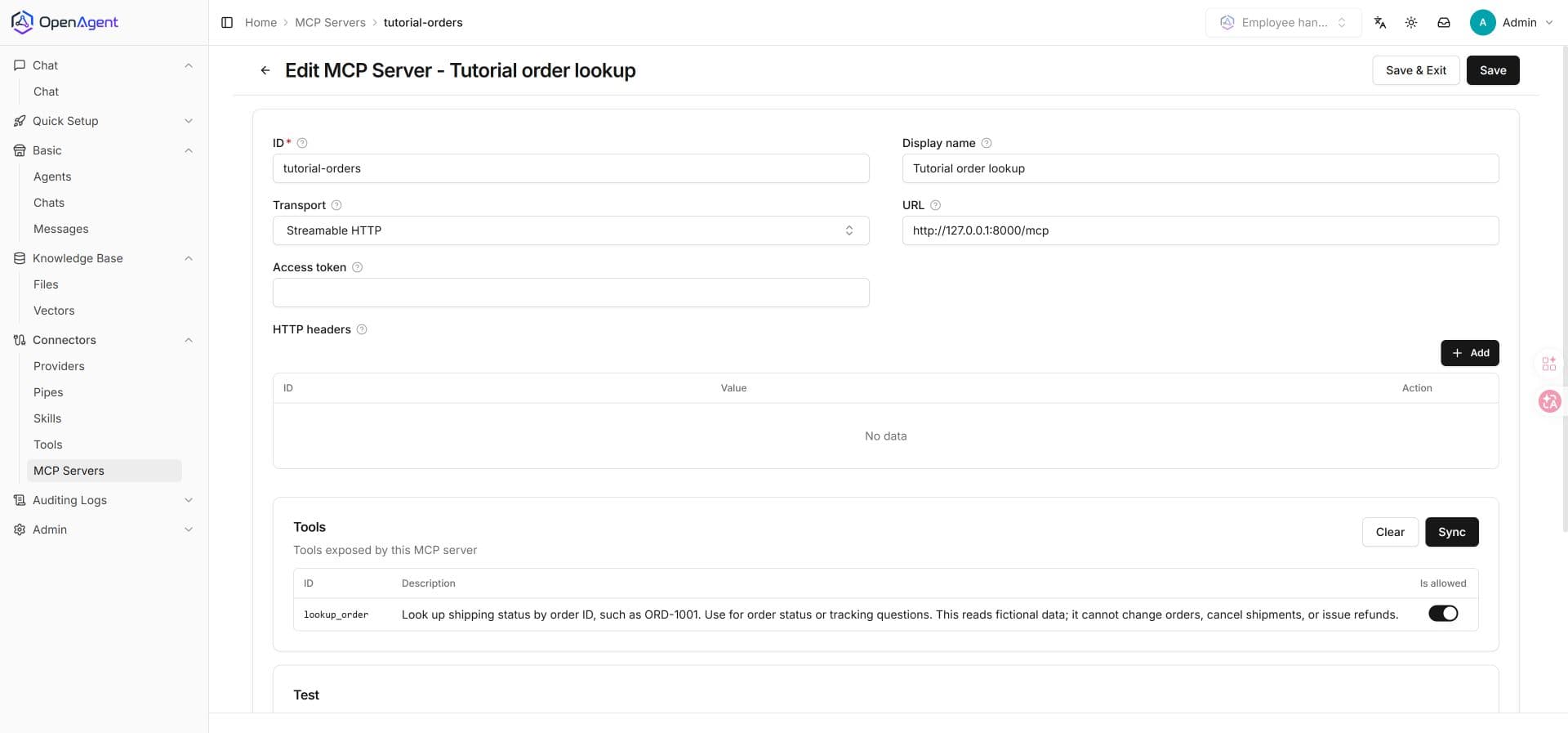
The URL must be reachable from the OpenAgent backend. These loopback addresses assume both processes run directly on the same computer. If OpenAgent runs in Docker or on a remote server, 127.0.0.1 points to that environment instead. Use an appropriately reachable, authenticated service for that deployment; do not expose this unauthenticated sample to the internet.
3. Attach the tool to an agent
In Basic → Agents → Add, create tutorial-orders with display name Order support. Choose your tool-capable Model provider and set MCP server to Tutorial order lookup. No embedding provider is needed; set Knowledge count to 0. Leave unrelated tools and skills unselected.
Use this Prompt:
When asked about order status, always call lookup_order first.
Report only the returned facts. If found is false, say the order
was not found. Do not invent delivery dates.
Save and open a new chat for Order support.
4. Verify a real tool call
Send:
Use lookup_order to check ORD-1001. Tell me the shipping status,
carrier and tracking number.
Expand the tool call in the answer. The UI can prefix the tool name with the server ID, such as tutorial-orders__lookup_order. Check its arguments:
{"order_id": "ORD-1001"}The tool result should contain:
{
  "order_id": "ORD-1001",
  "found": true,
  "status": "shipped",
  "carrier": "Demo Express",
  "tracking": "DEMO-4821"
}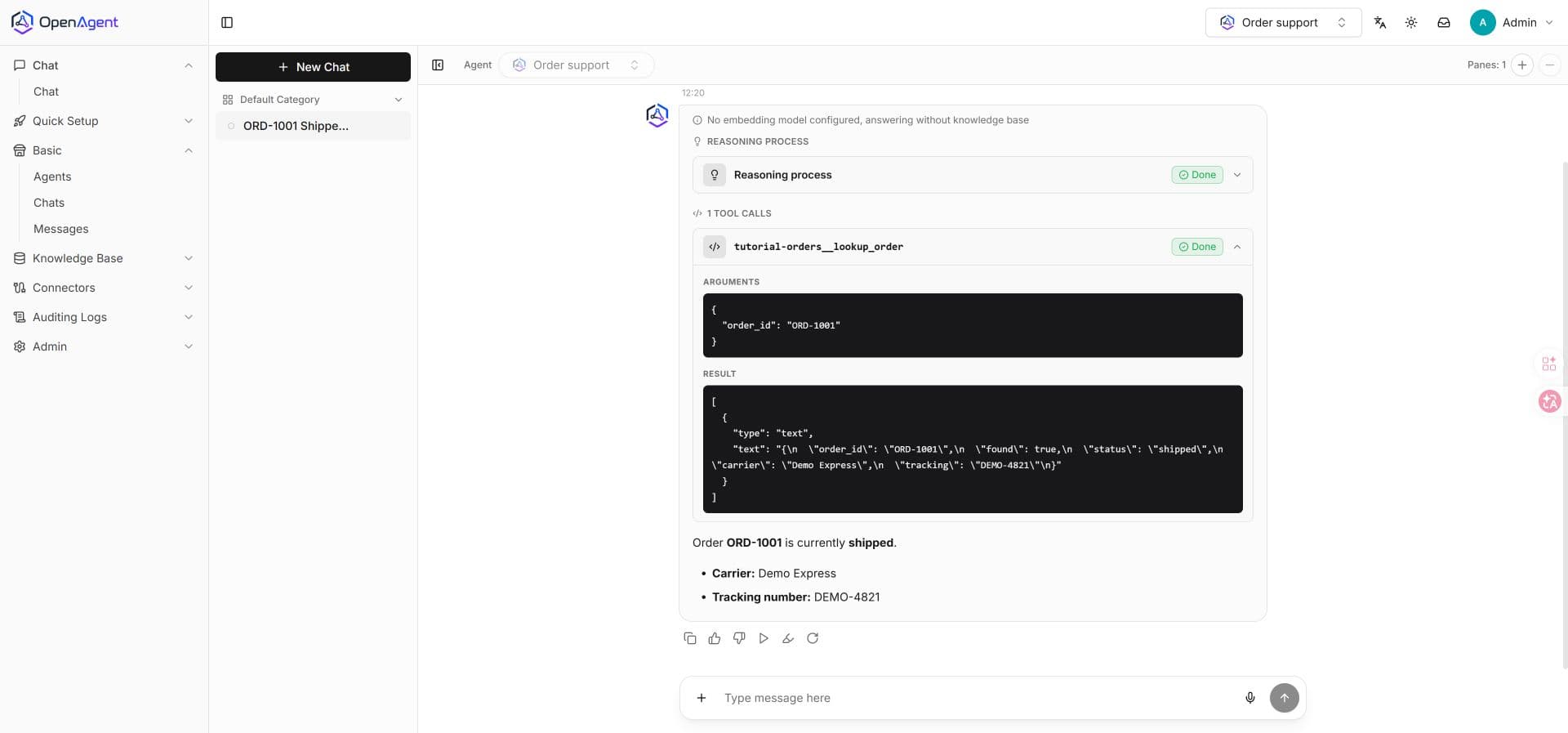
Pass condition: the tool actually ran, the returned data matches the dictionary, and the final answer agrees with it. A plausible shipping answer without a tool call does not pass.
5. Check missing data
Ask the assistant to look up ORD-1002. It should report processing without inventing a tracking number. Then ask for ORD-9999: the tool should return found: false, and the assistant should say it cannot find that order.
When changing the sample data, restart the Python process and ask in a new conversation. After adding or renaming tools, also run Sync again and review the allowlist.
Troubleshooting
| Symptom | What to check |
|---|---|
| Sync cannot connect | Python process is running, port is 8000, URL ends in /mcp, and the backend can reach it. |
| HTTP 404 or transport error | Use the MCP endpoint rather than the site root, and select Streamable HTTP. |
| Tool is absent from chat | Sync succeeded, Is allowed is enabled, and the agent's MCP server points to this server. Start a new chat. |
| Model replies without a tool call | Confirm model tool-calling support and use the explicit prompt above. Inspect the tool trace, not just the answer. |
| “No embedding model configured” | Expected: this tutorial uses a tool, not document retrieval. |
| Python import error | Install the pinned dependency into the same interpreter used to launch the script. |
Connect a real system
Replace the dictionary lookup with your backend query once the sample checks pass. Keep authorization and order ownership checks in the tool service, and provide credentials through your deployment's secret management. Keep the tool read-only until you deliberately implement and authorize actions. See MCP Servers for server settings or the knowledge-base tutorial for static documents.